
Product Multi Barcode
by Yugma Tech
🎯 Product Multi Barcode
Search products across all Odoo modules using unlimited barcodes - Works everywhere in your Odoo system!
✨ Odoo 19.0 | Community & Enterprise✨ Powerful Features
Unlimited Barcodes
Add as many barcodes as you need for each product. Perfect for products with multiple suppliers, different packaging sizes, or region-specific codes.
Search Across All Odoo Modules
Search products by any barcode anywhere in Odoo - Sales Orders, Purchase Orders, Invoices, Bills, Inventory operations, and any other module with product selection. Works system-wide with instant autocomplete.
Variant-Level Management
Manage barcodes at both product template and variant levels. Single products use template barcodes, multi-variant products use variant-specific barcodes.
Unique Validation
Optional unique barcode validation prevents duplicate barcodes across your system. Get warnings when attempting to use existing barcodes.
Lightning Fast
Optimized search algorithms using search_count and efficient database queries. No performance impact even with thousands of products.
Universal Odoo Integration
Works across all Odoo modules system-wide. Any module with product selection automatically benefits from multi-barcode search. No configuration needed - it just works everywhere!
📸 See It In Action
Real screenshots from Odoo showing how the module works. Search examples shown in Sales Orders work identically across all Odoo modules - Purchase, Invoicing, Inventory, Manufacturing, POS, and more!
📝 Step 1: Add Multiple Barcodes
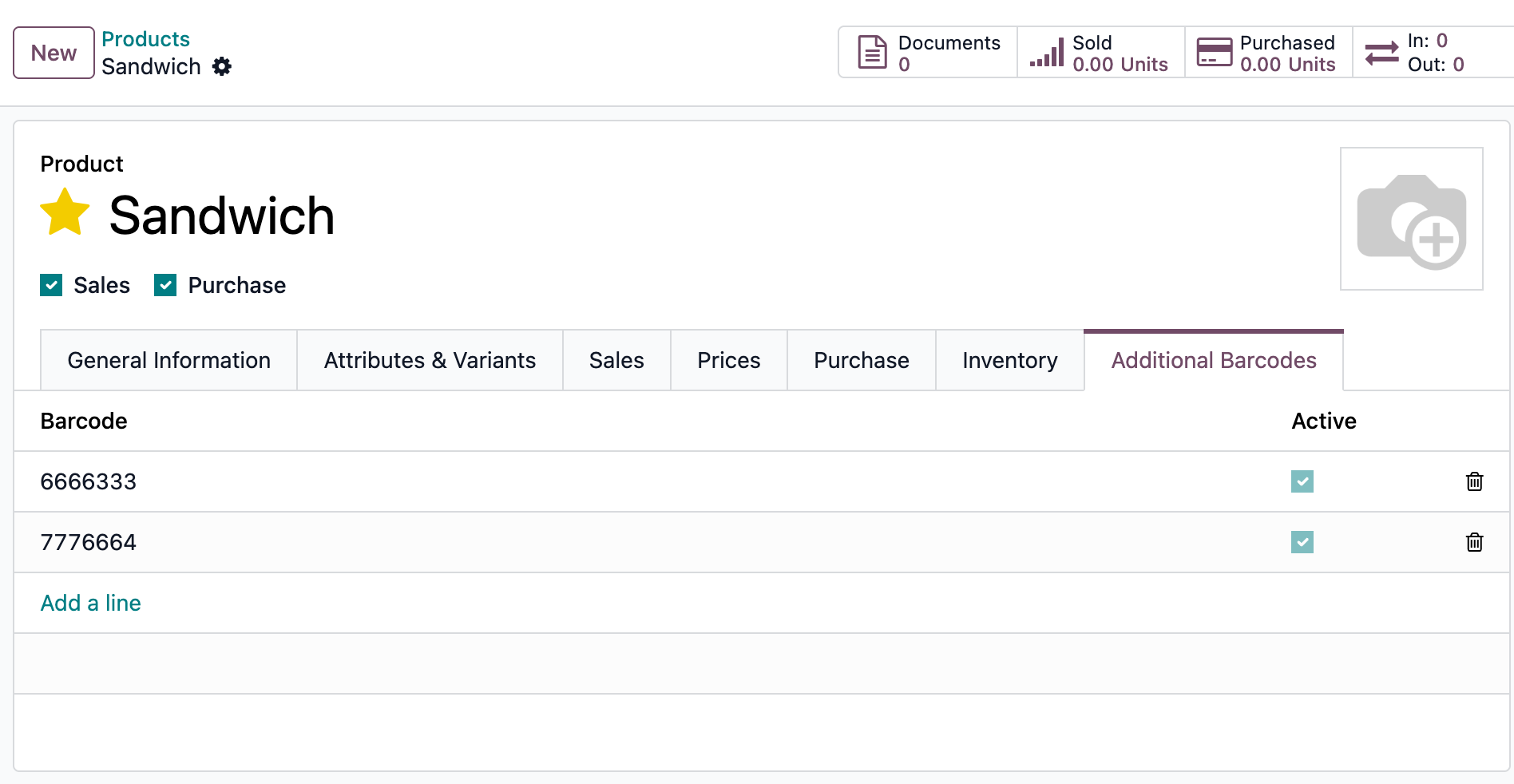
Product Template Level
For single products without variants, add multiple barcodes in the "Additional Barcodes" tab on the product template. This example shows the "Sandwich" product with barcodes 6666333 and 7776664.
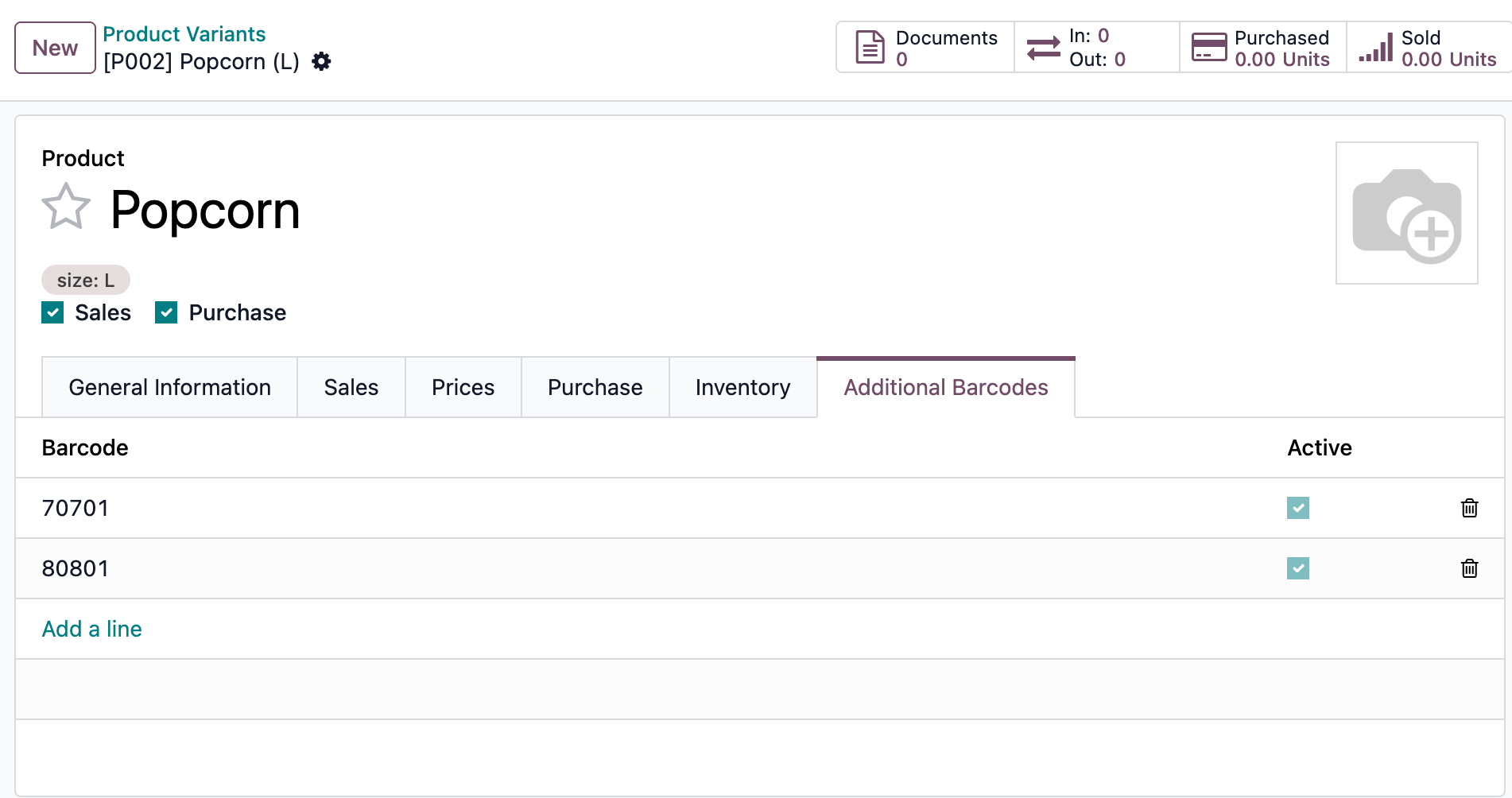
Product Variant Level
For products with multiple variants, add barcodes in the "Additional Barcodes" tab on each variant. This example shows "Popcorn (L)" variant with barcodes 70701 and 80801.
🔍 Step 2: Search by Barcode in Sales Orders
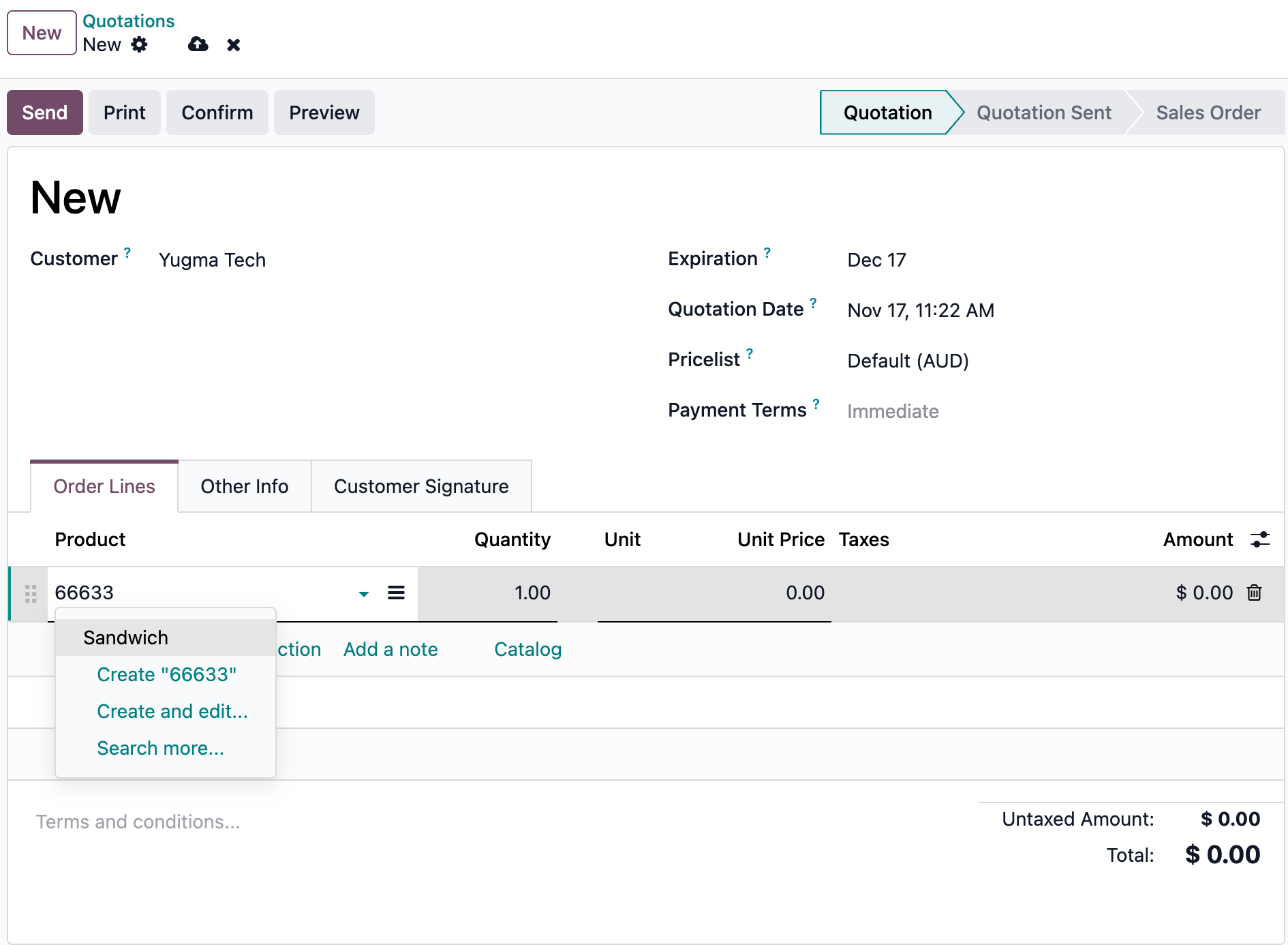
Search Product Template
Type barcode 66633 in the Product field and instantly find "Sandwich" product. Autocomplete shows matching products immediately. Works in all modules!
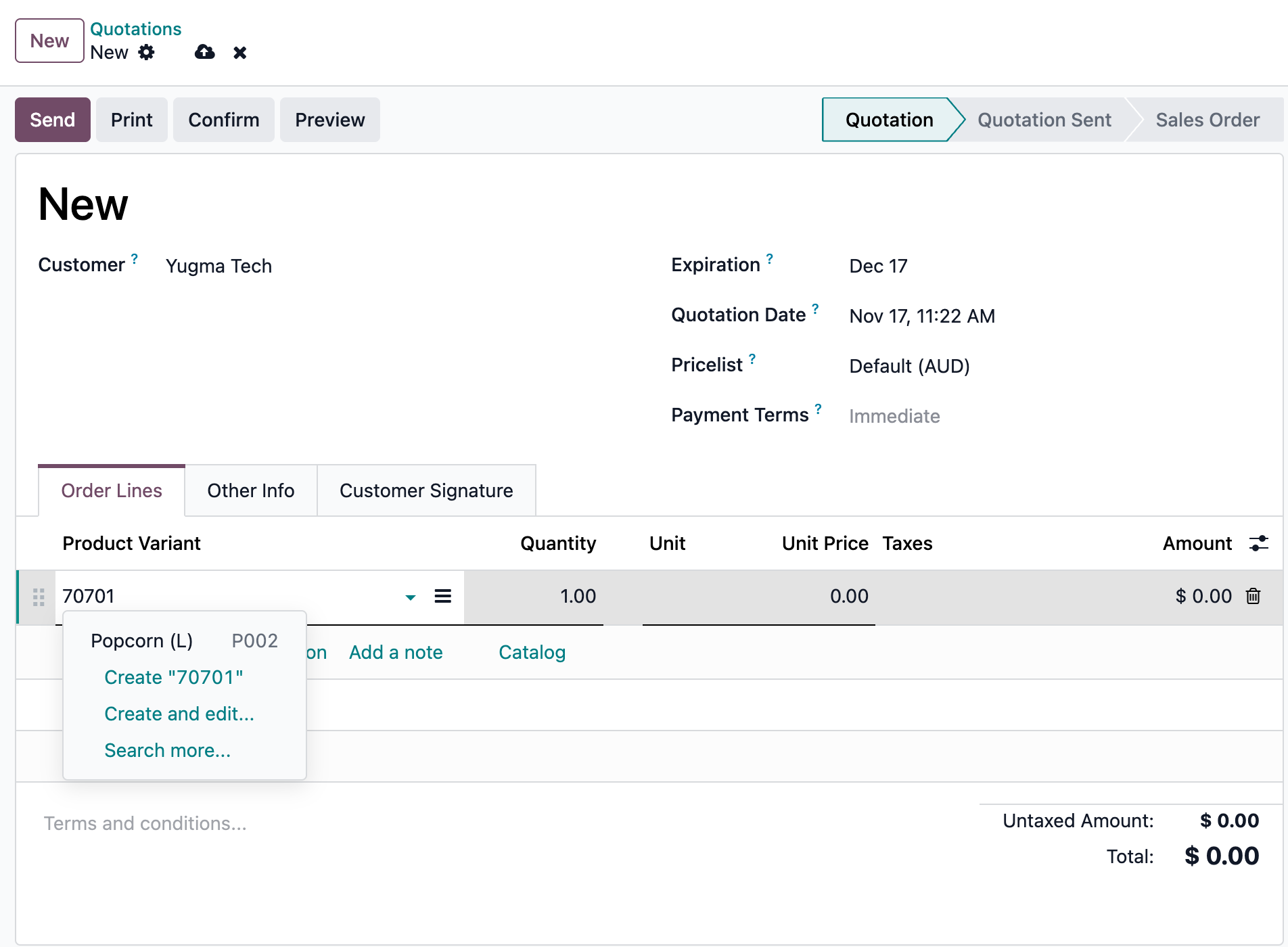
Search Product Variant
Type barcode 70701 in the Product Variant field and instantly find "Popcorn (L)" variant. Smart autocomplete with product reference. Works system-wide!
🔎 Advanced: "Search More" Dialog Support
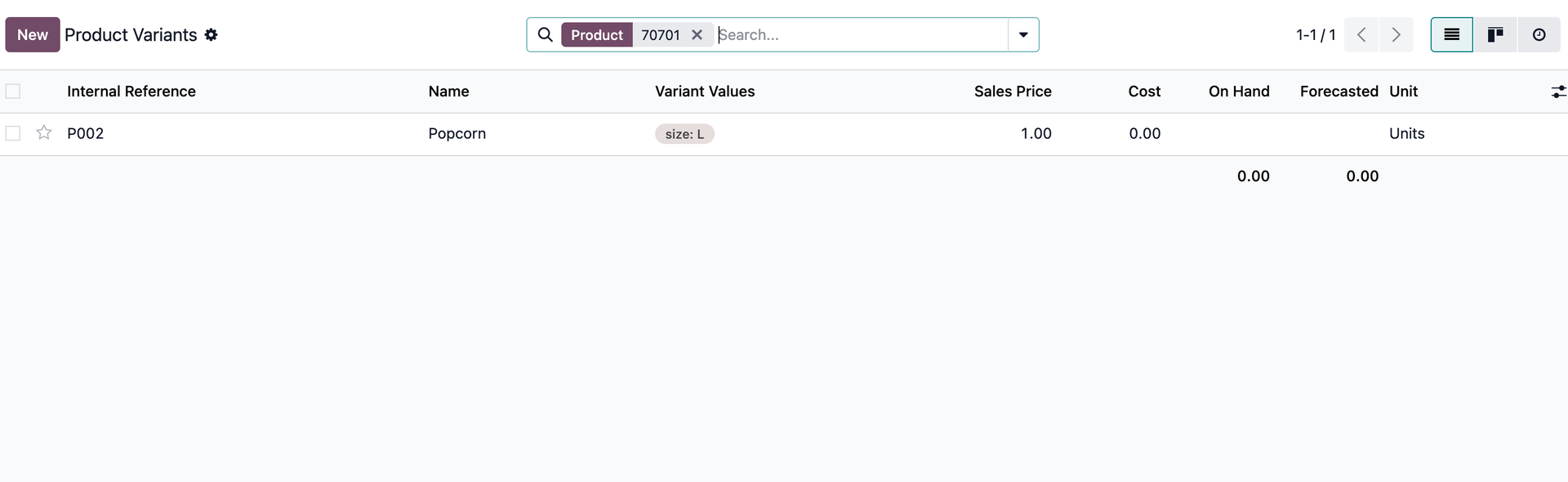
Variant List Search
Use barcode 70701 in the Product Variants list view filter. The "Search More" dialog finds variants by any of their additional barcodes. Perfect for large product catalogs!
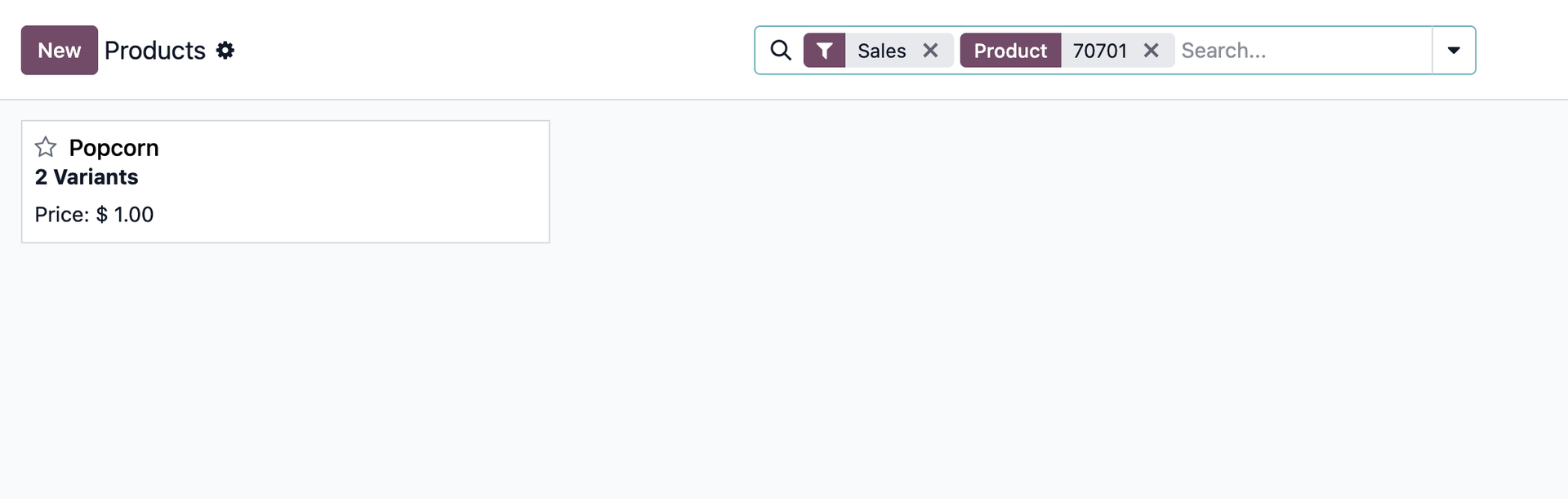
Template List Search
Search for barcode 70701 in the Products list finds "Popcorn" template because one of its variants has that barcode. Smart parent-child relationship handling!
🚀 Works Everywhere in Odoo
The barcode search functionality shown above in Sales Orders works identically across all Odoo modules - Purchase, Invoicing, Inventory, Manufacturing, POS, and any custom modules. Install once, use everywhere!
⚙️ Easy Configuration
Optional settings to customize the module behavior. No configuration required to start using it!
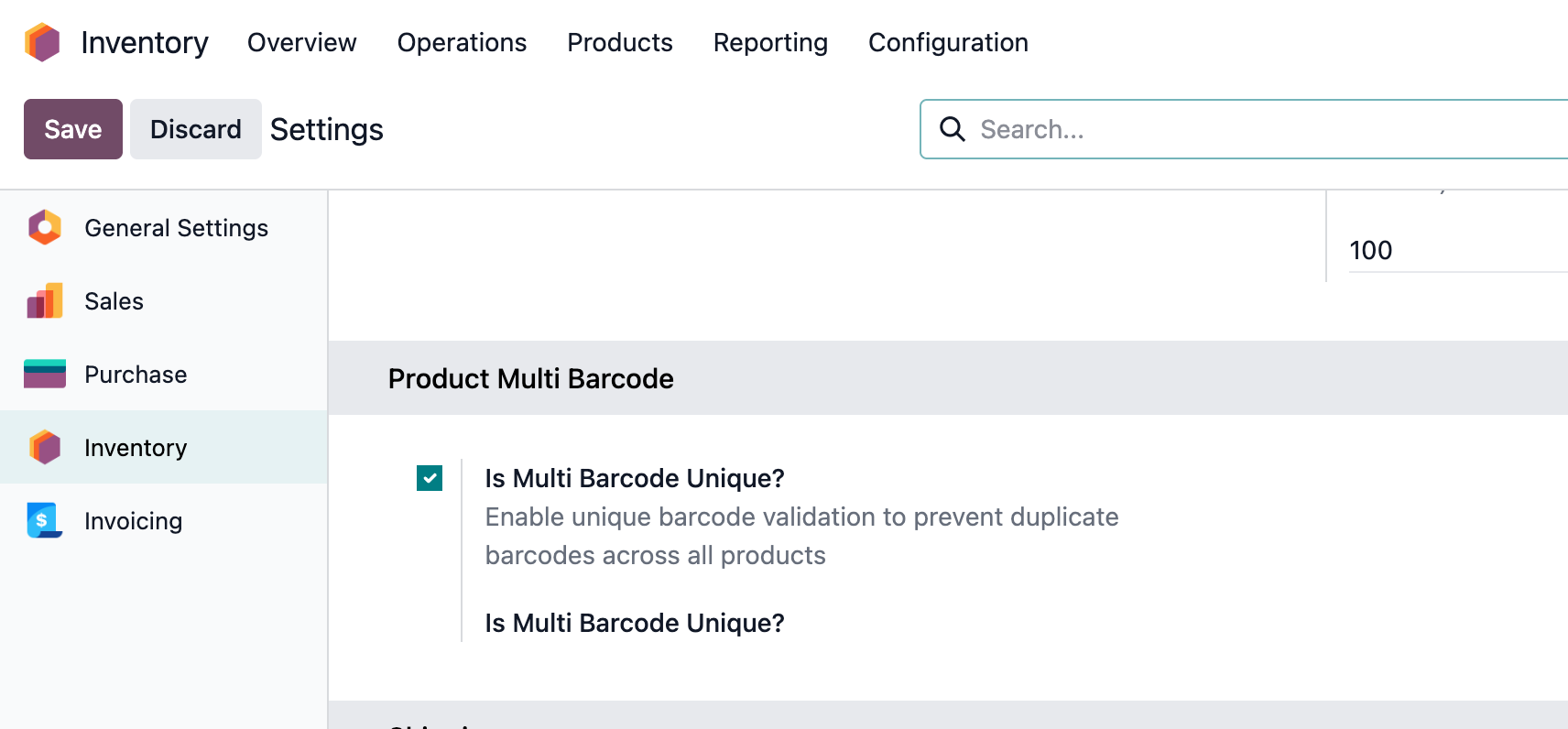
📋 Unique Barcode Validation (Optional)
Go to Settings → Inventory → Product Multi Barcode section to enable optional features:
- ✓ Is Multi Barcode Unique? - Enable this checkbox to enforce unique barcode validation across all products
- ✓ Prevents duplicate barcodes in your system
- ✓ Shows validation errors when trying to save duplicate barcodes
- ✓ Works for both template and variant level barcodes
🚀 Why Choose This App?
Business Efficiency
Reduce order processing time by 60% with instant barcode lookup
Accuracy
Eliminate product selection errors with precise barcode matching
Scalability
Handles enterprises with 100,000+ products effortlessly
Easy Setup
Install and start using immediately - no complex configuration
📝 How It Works
Add Barcodes
Open any product form and navigate to the "Additional Barcodes" tab. Add multiple barcodes with active/inactive toggle.
Search Anywhere in Odoo
Type any barcode in product fields across any Odoo module - Sales, Purchase, Invoices, Bills, Inventory, Manufacturing, and more. The system instantly finds and suggests the correct product everywhere.
Process Orders
Select products using any of their barcodes. Works in both autocomplete dropdown and "Search More" dialogs.
Manage Variants
For products with variants, each variant can have its own set of barcodes. Single products manage barcodes at template level.
⚙️ Technical Specifications
🔌 Universal Integration
- ✓ Works across ALL Odoo modules
- ✓ Sales Orders & Quotations
- ✓ Purchase Orders & RFQs
- ✓ Customer Invoices & Vendor Bills
- ✓ Inventory & Stock Operations
- ✓ Manufacturing Orders (MRP)
- ✓ Point of Sale (POS)
- ✓ Any module with product selection
📦 Module Details
- ✓ Technical Name: yt_product_multi_barcode
- ✓ Version: 19.0.1.0.0
- ✓ License: OPL-1
- ✓ Dependencies: product, sale_management, purchase, account, stock
- ✓ Lines of Code: 800+
- ✓ Category: Sales
🎨 UI/UX Features
- ✓ Clean tab interface in product forms
- ✓ Editable inline list views
- ✓ Active/inactive toggle per barcode
- ✓ Automatic visibility based on variants
- ✓ Read-only templates for single variants
- ✓ Helpful info messages for users
🔧 Search Capabilities
- ✓ Exact barcode matching
- ✓ Partial barcode matching (ilike)
- ✓ Template-level search
- ✓ Variant-level search
- ✓ Autocomplete dropdown integration
- ✓ "Search More" dialog support
⚠️ Important Notes
For Multi-Variant Products: Barcodes must be managed at the variant level. Template-level barcodes are ignored for products with multiple variants to ensure precise variant identification.
For Single Products: Barcodes are managed at the template level and displayed (read-only) in variant forms with helpful guidance.
Ready to Streamline Your Operations?
Install Product Multi Barcode today and search products by barcode across all your Odoo modules!
💬 Professional Support
Need help or customization?
Email: hello@yugmatech.com
Website: www.yugmatech.com
